
Texture pack resolutions explained: 16x to 512x
What 16x, 32x, 128x and 512x mean, how much more each one asks of your device, and how to choose a resolution that keeps your game smooth.
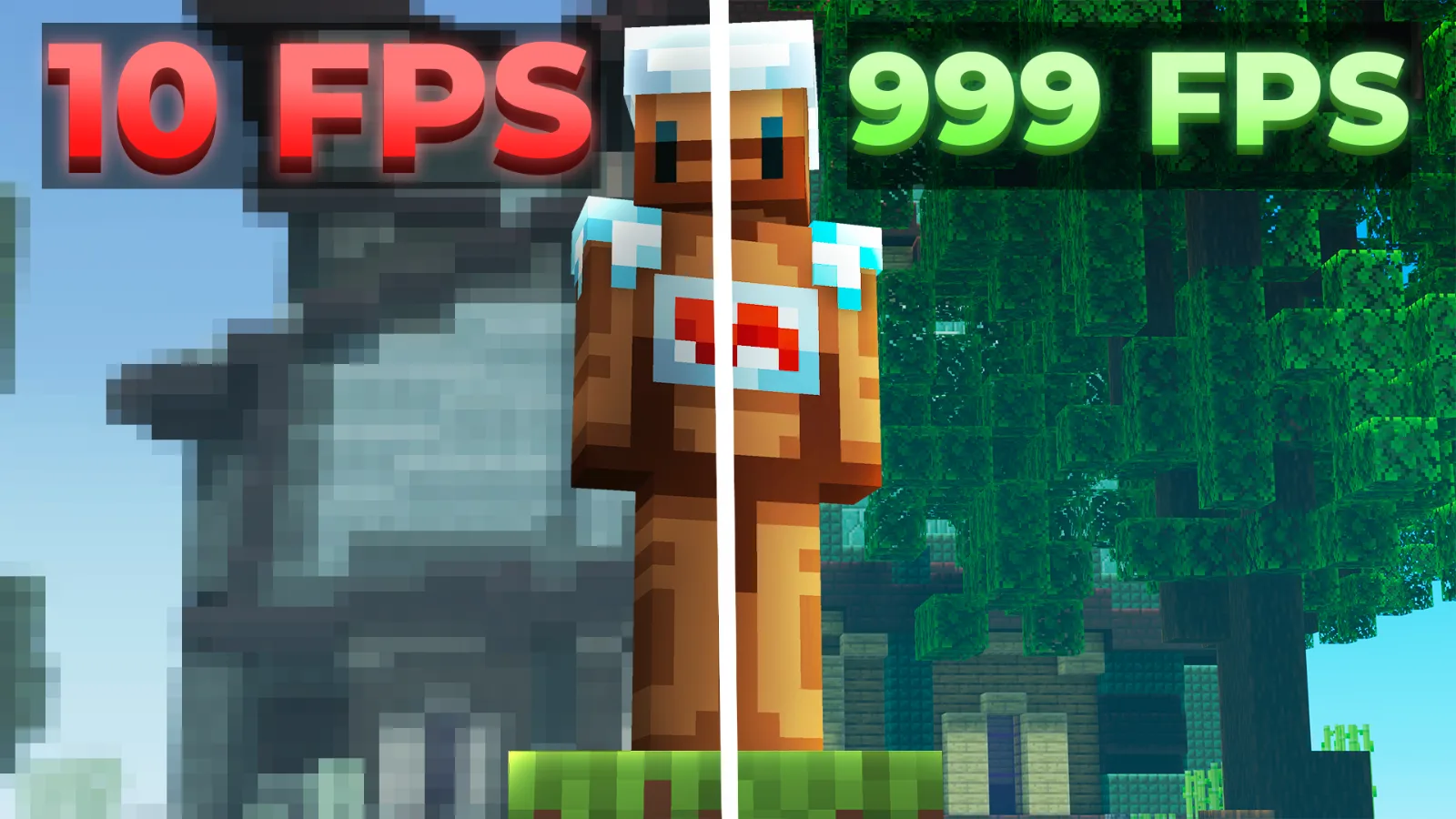
Texture packs often have a number with an x in their name: 16x, 32x, 128x. That's the pack's resolution, and it's the biggest single thing that decides how sharp a pack looks and how hard it makes your device work.
What the number means
The number is how many pixels wide each block texture is. Minecraft's own textures are 16x: the side of a stone block is a grid of 16 by 16 pixels. A 32x pack draws the same block on a 32 by 32 grid, so it can show finer detail, smoother edges and more shading.
Each step up doubles the width and the height, so every texture has four times as many pixels as the step before:
- 16x: 256 pixels per texture, the same as vanilla.
- 32x: 1,024 pixels, four times vanilla.
- 64x: 4,096 pixels, 16 times vanilla.
- 128x: 16,384 pixels, 64 times vanilla.
- 256x: 65,536 pixels, 256 times vanilla.
- 512x: 262,144 pixels, 1,024 times vanilla.
Why higher resolutions can slow your game down
Minecraft keeps the textures it's using in your device's memory, and more pixels need more memory. Because each step up makes every texture four times bigger, a 128x pack needs roughly 64 times the texture memory of vanilla for the same blocks.
On a powerful PC with a good graphics card, that often doesn't matter. On phones, tablets and older laptops, that memory is shared with everything else the device is doing, so a very high-resolution pack can mean longer loading, stutters when a lot is happening on screen, or the game closing on its own.
Resolution isn't the only thing that counts. Animated textures, a custom sky and lots of packs active at once all add to the load, and your video settings, especially render distance, make a big difference too. If your game feels slow, a lower-resolution pack is one of the first things to try. IcyNutella's FPS pack page also lists free settings that make a big difference.
Which resolution should you pick?
- Older phones and tablets: stick to 16x. It costs no more than vanilla.
- Most recent phones and PCs: 32x is a safe step up. It looks noticeably sharper and most devices run it smoothly.
- Gaming PCs and high-end phones: 64x and 128x are worth a try. Watch your frame rate in busy moments, not just in an empty world.
- 256x and 512x: these are for screenshots and strong hardware. They can look stunning, but even good devices may struggle in a big fight.
For competitive PvP, many players stay at 16x or 32x even on strong hardware. Simple textures are easy to read at a glance, and a steady frame rate matters more in a fight than extra detail.
How to check a pack's resolution
- Look at the name and tags. Texture packs on mcbepacks are tagged with their resolution when it's known.
- Don't mix it up with milestone numbers. "5k", "40k" or "150k" in a name usually means the pack was made when a YouTuber reached that many subscribers. The IcyNutella 40k Mashup, for example, is a 16x pack. The pack names guide explains the rest of the shorthand.
- Look inside the pack. An .mcpack is a zip file. Make a copy, rename it to .zip, open it and look at a block texture such as
textures/blocks/stone.png. Its size in pixels, like 32 by 32, is the pack's resolution.
Many packs mix resolutions. A pack might use 16x blocks with a more detailed sword or sky, and the number in its name usually describes the blocks.
Packs at different resolutions
Blitz 1k is a 16x pack, smoolh 1k and Odyssey are 32x, IcyNutella's Top 10 folder runs from 16x up to Sorrow 256x, and AptinYT's Cleanest folder is mostly 16x but ends with Mathox 512x. Try a few on your own device to see where it starts to struggle.
- Blitz 1k by Aixiine
- smoolh 1k by smoolh
- Odyssey 32x [Aeecii 2K] by Aeecii
- Top 10 BEST Packs for Minecraft PvP by IcyNutella
- The Cleanest Hive Pack Folder Ever Made (21+ Packs) by AptinYT